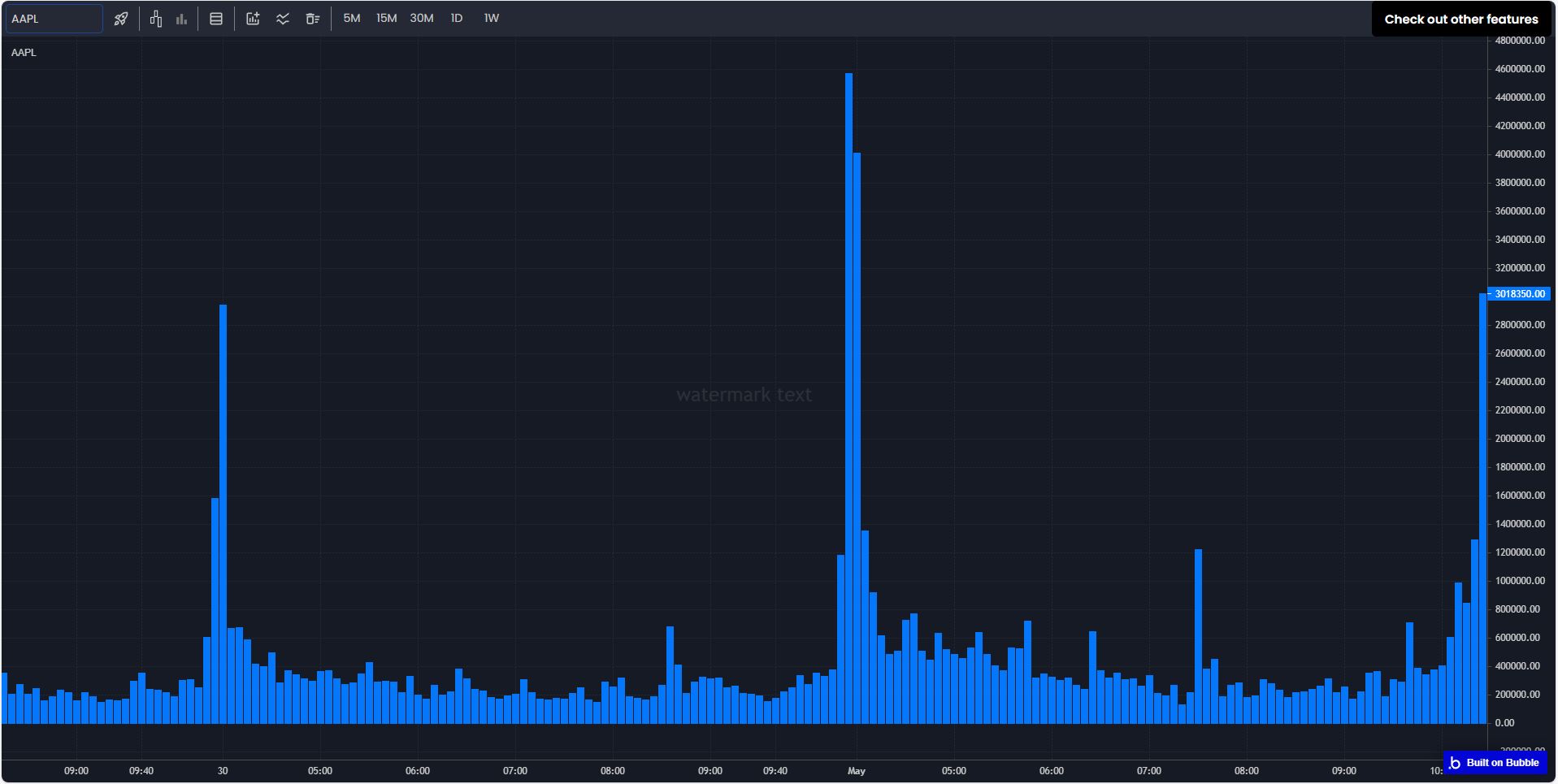
> For the complete documentation index, see [llms.txt](https://vizualcoders.gitbook.io/vcplugins/llms.txt). Markdown versions of documentation pages are available by appending `.md` to page URLs; this page is available as [Markdown](https://vizualcoders.gitbook.io/vcplugins/financial-charts-stocks-crypto.md).
# Financial Charts (Stocks • Crypto)
## Introduction
Financial chart plugin is an outstanding solution for creating financial charts. Designed for stocks, stock futures, forex and crypto-currency analysis/trading apps, it provides advanced charting capabilities that are both highly customizable and easy to integrate. Users can seamlessly connect their own database or fetch external data via APIs, making it a versatile and developer-friendly plug-in. This plugin empowers app to visualize data dynamically, extract actionable insights using built-in technical indicators and make informed decisions with confidence
## Demo
{% embed url="" %}
## Demo Editor
{% embed url="" %}
## Key features
* One chart element to render multiple series type with capability of drawing overlays, on different axis and different chart views.
* Customizable Chart Appearance – Modify colors, markers, axis styles, crosshair and grid options to match your brand or preferences.
* Advanced Customization – Enhance charts with annotations, axis modifications, and tooltip styling.
* Supports dynamic data sources like bubble's database or external APIs to feed data to chart.
* Supports chart rendering on multiple resizable panes.
* Built-in indicators for technical analysis.
## Plugin element
### Chart data parameters
| Title | Description | Type |
| ---------------- | -------------------------------------------------- | -------- |
| Company name | The name of the company to which the data pertains | Text |
| Chart Type | Type of chart to be rendered | Dropdown |
| Dates | List of datetime in timestamp | Number |
| Highs | List of highs of history data | Number |
| Lows | list of lows of history data | Number |
| Opens | list of opens of history data | Number |
| Closes | list of closes of history data | Number |
| Volumes | list of volumes of history data | Number |
| Show Volume Bars | Show volume bars on main series | Checkbox |
### Chart canvas and tooltip setting
| Title | Description | Type |
| -------------------------- | ---------------------------------------------------------------- | -------- |
| Background color | Background color of the chart canvas | Color |
| Text color | Text color of the chart canvas | Color |
| Pane separator color | Pane separator color | Color |
| Pane separator hover color | Pane separator hover color | Color |
| Show data window | Show/Hide data window to see data rendered on chart while moving | Checkbox |
| Show Legend | Show chart data on main series view on chart while moving mouse | Checkbox |
| Show tooltip | Show chart data on tooltip | Checkbox |
| Tooltip type | Tooltip style as Tracking, Floating, Magnifier | Dropdown |
| Tooltip company name color | Company name text color in tooltip | Color |
| Tooltip value color | Data value color in tooltip | Color |
### Grid settings
| Title | Description | Type |
| -------------------------- | ------------------------------------------------------------------------------------------------ | -------- |
| Show vertical gridlines | Visibility for vertical grid lines on chart view | Checkbox |
| Veritical gridline color | Color of vertical gridlines on chart view | Color |
| Veritical gridlines style | Style of vertical gridlines on chart view (Dashed, Dotted, Solid, Large dashes, sparse dotted) | Dropdown |
| Show horizontal gridlines | Visibility for horizontal grid lines on chart view | Checkbox |
| Horizontal gridline color | Color of horizontal gridlines on chart view | Color |
| Horizontal gridlines style | Style of horizontal gridlines on chart view (Dashed, Dotted, Solid, Large dashes, sparse dotted) | Dropdown |
### **Crosshair setting**
| Title | Description | Type |
| ------------------------------------------- | ------------------------------------------------------------------------------------------------------------------ | -------- |
| Crosshair type | Magnet crosshair snaps to the nearest data point on the chart. Normal crosshair follows the mouse cursor on chart. | Dropdown |
| Show crosshair marker | A small circle will be rendered on each data series on chart under the crosshair | Checkbox |
| Show vertical line on crosshair | Vertical line visible of crosshair | Checkbox |
| Crosshair vertical line color | color of vertical line of crosshair | Color |
| Crosshair vertical line width | Width of vertical line of crosshair | Number |
| Crosshair vertical line style | Vertical line style of crosshair (Dotted, Dashed, Solid, etc) | Dropdown |
| Show vertical crosshair label | Show vertical crosshair label on (x-axis) timescale of chart view | Checkbox |
| Show hours on vertical crosshair label | Show hours with date on vertical crosshair label on timescale(x-axis) of chart view | Checkbox |
| Vertical crosshair label background color | Background color of vertical crosshair label | Color |
| Show horizontal line on crosshair | Horizontal line visibility of crosshair | Checkbox |
| Crosshair horizontal line color | Horizontal line color of crosshair | Color |
| Crosshair horizontal line width | Horizontal line width of crosshair | Number |
| Crosshair horizontal line style | Horizontal line style of crosshair (Dotted, Dashed, Solid, etc) | Dropdown |
| Show horizontal crosshair label | Show horizontal crosshair label on pricescale (y-axis) of chart view | Checkbox |
| Horizontal crosshair label background color | Background color of horizontal crosshair label | Color |
### Price scale settings
| Title | Description | Type |
| ------------------------------ | ------------------------------------------------------------------------------------------------------------------------------------------------------------------------------- | -------- |
| Show price scale | Price scale (y-axis) visibility | Checkbox |
| Show price scale border | Price scale (y-axis) border visibility | Checkbox |
| Price scale border color | Price scale (y-axis) border color | Color |
| Price scale position | Price scale (y-axis) position (left,right) | Dropdown |
| Price scale type | Type of price scale (y-axis). Normal, percent or logarithmic. Only applicable to main series. All other series will use normal price scale type | Dropdown |
| Align price scale labels | Determines how labels are displayed on the price scale. When set true, it ensures that only the full text of the label is shown, without any truncation or ellipsis. | Checkbox |
| Price scale auto scale | Fits series data to chart view vertically on render while true | Checkbox |
| Invert price scale | Invert price scale to descending order | Checkbox |
| Draw rick marks on price scale | raw tick marks on each price label on price scale(y-axis) | Checkbox |
| Price scale top margin | The top margin of the price scale, where 0.05 represents 5% and the maximum value of 1 equates to 100%, will create extra space above when the main chart series is rendered | Number |
| Price scale bottom margin | The bottom margin of the price scale, where 0.2 represents 20% and the maximum value of 1 equates to 100%, will create extra space below when the main chart series is rendered | Number |
| Price scale minimum value | Minimum value on main Series pricescale. this will not work without Price scale max value. | Number |
| Price scale maximum value | Maximum value on main series pricescale . This will not work without Pricescale min value. | Number |
### **Timescale & Last value line setting**
| Title | Description | Type |
| --------------------- | ------------------------------------------------------------------ | -------- |
| Show last value line | While true, latest/last value line on main series will be rendered | Checkbox |
| Last value line width | Latest/last value line width | Number |
| Last value line color | Latest/last value line color | Color |
| Last value line style | Latest value line style (Dotted, Dashed, Solid, etc) | Dropdown |
| Title | Description | Type |
| ------------------------------------ | ------------------------------------------------------------------------------------------------------------------------------------------------------- | -------- |
| Show time scale | Time scale (x-axis) visibility | Checkbox |
| Show time scale border | Time scale (x-axis) border visibility | Checkbox |
| Time scale border color | Time scale (x-axis) border color | Color |
| Time scale right offset | The number of empty space(bars) to the right of the last visible bar/line/candle on chart series. This will be overridden if Fix right edge is selected | Number |
| Bar spacing | The distance between bars in pixels. This can control how many bars are visible while rendered to chart view. | Number |
| Fit all data | Show all rendered data in a chart view | Checkbox |
| Fix left edge | Prevent scrolling to the left of the first bar (most left bar) | Checkbox |
| Fix right edge | Prevents scrolling to the right of the most recent bar | Checkbox |
| Time scale right bar stays in scroll | The right most bar stays in the same place when scrolling | Checkbox |
| Locale | Localization options | Text |
## Chart series settings
### Candle & Bar series
| Title | Description | Type |
| --------------------- | ------------------------------------------------------------------ | -------- |
| Up color | Candle/bar up color. This color will also be used by volume bars | Color |
| Down color | Candle/bar down color. This color will also be used by volume bars | Color |
| Wick up color | Candle wick up color | Color |
| Wick down color | Candle wick down color | Color |
| Up border color | Up candle body border color | Color |
| Down border color | Down candle body border color | Color |
| Thin bars on HLOC bar | Draws thin lines on HLOC bar chart series | Checkbox |
### Line & Area series
#### Line series parameters
| Title | Description | Type |
| ---------- | ----------------------------------------------------- | -------- |
| Line color | Line color of line chart | Color |
| Line width | Line thickness/width of line chart | Number |
| Line style | Line style of line chart (Solid, Dotted, Dashed, etc) | Dropdown |
#### Area series parameters
| Title | Description | Type |
| -------------------- | ----------------------------------------------------- | -------- |
| Gradient start color | Gradient top color of area chart | Color |
| Gradient end color | Gradient bottom color of area chart | Color |
| Area line color | Line color of area chart | Color |
| Area line width | line thickness/width of area chart | Number |
| Area line style | Line style of area chart (Solid, Dashed, Dotted, etc) | Dropdown |
### Baseline & Histogram series
#### **Baseline series param**
| Title | Description | Type |
| ---------------------------- | --------------------------------------------------------- | -------- |
| Base line value | Base value of baseline chart | Number |
| Baseline chart line width | Line thickness/width of baseline chart | Number |
| Baseline chart line style | Line style of baseline chart (Solid, Dashed, Dotted, etc) | Dropdown |
| Top series line color | Line color of series above the base value | Color |
| Top series gradient start | Gradient top color of series above the base value | Color |
| Top series gradient end | Gradient bottom color of series above the base value | Color |
| Bottom series gradient start | Gradient top color of series below the base value | Color |
| Bottom series gradient end | gradient bottom color of series below the base value | Color |
| Bottom series line color | Line color of series below the base value | Color |
#### **Histogram series param**
| Title | Description | Type |
| --------------- | ------------------------------------- | ------ |
| Baseline value | Base value for histogram chart series | Number |
| Histogram color | histogram chart color | Color |
## Watermark
This plugin has a built-in feature for displaying simple text watermarks on your chart.
| Title | Description | Type |
| ------------------- | ---------------------------------------------------- | -------- |
| Show watermark | Draw watermark text on main chart view | Checkbox |
| Watermark text | Text to render as a watermark | Text |
| Watermark color | Text color of watermark | Color |
| Watermark font size | Font size of watermark | Number |
| Horizontal position | Watermark horizontal alignment (left, center, right) | Dropdown |
| Vertical position | Watermark vertical alignment (top, center, bottom) | Dropdown |
## Mouse interaction setting
| Title | Description | Type |
| -------------------------------- | --------------------------------------------------------------------------- | -------- |
| Chart scalling using mouse wheel | Scale chart using mouse wheel and pinch on mobile devices | Checkbox |
| Chart scalling using axis drag | Scale chart with x and y axis using mouse wheel and pinch on mobile devices | Checkbox |
| Enable chart mouse drag | Drag chart using mouse drag or touch on mobile device | Checkbox |
## Plugin actions
This plugin provides a range of actions, allowing users to add and remove series, add and remove price lines, and add and remove markers. Additionally, it supports taking screenshots, clearing all markers, and removing all series efficiently.
## Add series
You can add a line series to the main series as an overlay or place it in a new pane. Additionally, you have the flexibility to use the default price scale or assign a new price scale for the series.
### **Add Line series as an overlay**
In below example we have baseline series as a main series, and we will be adding line series as an overlay series on main series. Below is an image of workflow with parameters
In the image above, we are selecting an element to add a line series as an overlay. To configure this, a unique series name must be provided. You must provide the series name as it will be used in data window as well as will be used to remove the particular series. Additionally, there is an option to enable the left-side price scale by checking the respective checkbox; if left unchecked, the series will use the right-side price scale.
Since we have unchecked the 'New Pane' checkbox, the line series is drawn directly on the main series as an overlay. The required data for this configuration includes a list of dates in Unix timestamp format and historical values such as High, Low, Close, and Open, which must be specified in the 'Values' field.
Below the data input section, appearance settings are available, allowing customization of line color, style, width, and other properties. The final result, shown at the bottom, illustrates the line series being drawn above the baseline series.
### **Add Line series on new pane**
In below example we have baseline series as a main series, and we will be adding line series on new pane below main pane where baseline series is drawn. Below is an image of workflow with parameters.
As in the image above, we are drawing a line series in a new pane while utilizing the same price scale as the main series. All required data and parameters have been provided, following the same structure as the previous example.
The final result, displayed at the bottom, showcases the line series positioned above the baseline series."
### **Add Candle series**
We have an action called **Add Candle Series Chart**, which allows you to add a candle series to a chart element. To configure this, you must provide all required parameters as shown in the image above.
Follow the same instructions to add the series as an overlay or in a new pane. Ensure that all necessary data and appearance parameters—such as colors and styling—are set appropriately.
Additionally, assign a unique series name, which will be used in the data window and will also serve as a reference when removing the series.
### **Add Bar series**
We have an action called **Add Bar Series Chart**, which allows you to add a bar series to a chart element. To configure this, you must provide all required parameters as shown in the image above.
### **Add Area series**
We have an action called **Add Area Series Chart**, which allows you to add area series to a chart element. To configure this, you must provide all required parameters as shown in the image above.
### **Add Baseline series**
We have an action called **Add Baseline Series Chart**, which allows you to add baseline series to a chart element. To configure this, you must provide all required parameters as shown in the image above.
### **Add Histogram series**
We have an action called **Add Histogram series Chart**, which allows you to add histogram series to a chart element. To configure this, you must provide all required parameters as shown in the image above.
## Remove series
### **Remove a series**
In this action, you must specify the series name that was assigned when adding the series. To remove the line series added in the previous example, the following action, shown in the image below, is used. Here, we provide 'Nvidia line' as the series name to remove the line series from the chart.
Below is an image illustrating the action used to remove the series.
### **Remove all series**
This action will remove all the series except main series from the chart.
## Indicators
You can enhance a chart element by adding in built indicators, with options such as **SMA, EMA, MACD, Fast Stochastics, Slow Stochastics, RSI, Aroon, and Accumulation-Distribution** available for selection.
From the indicator selection popup, you can choose one and configure it using various parameters, including **line color, period, line thickness, and line type**. The indicator can be rendered either on the **main series** by default or on a **specific pane** of your choice. Additionally, you have the option to create a **new pane** dedicated to the indicator by selecting the appropriate setting in the **Render Pane** parameter.
In this example, the S**MA** indicator has been rendered with a **yellow solid line** on the **main series**, using the specified values. As shown in the image, its data is also displayed in the **data window**, from which you can choose to **hide or remove the indicator**. Let me know if you'd like any refinements! Below is how SMA indicator will be rendered on main series.
## Data window
You can **See or Hide Data Window** which allows you to toggle the visibility of the data window, which displays real-time values as you move your mouse over the chart. This window provides information on all available series within the chart element, including the **main series** and any **added series**. You can choose to **hide or show** specific series from the element or completely **remove** a series from the chart.
## Price line
### Add price line
| Title | Description | Type |
| --------------- | --------------------------------------------------------------------------------- | -------- |
| Priceline id | Unique ID of this price line. This id can be used later to remove this price line | Text |
| Series name | Unique name of the series. Leaving empty will render the line on main series | Text |
| Priceline label | Label of price line | Text |
| Price | The price at which the price line should be rendered | Number |
| Priceline color | Priceline color. This color will also be used by labels on this line | Color |
| Priceline width | Width of this price line | Number |
| Priceline style | Style of this price line (Solid, Dashed, Dotted, Etc) | Dropdown |
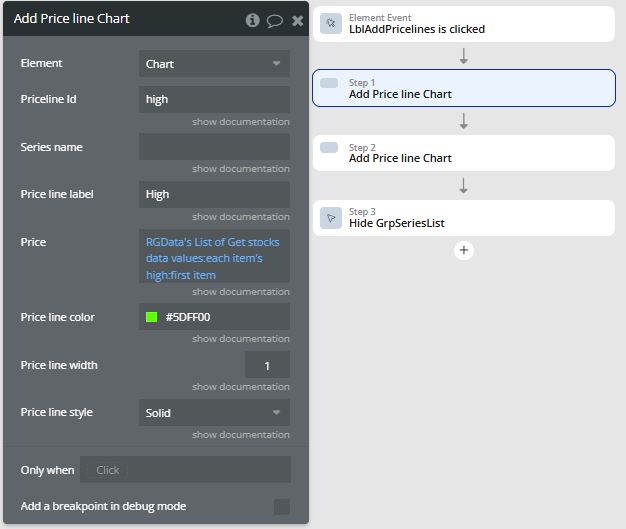
The **"Add Price Line Chart"** action allows you to add a customizable price line to a selected chart element. To configure this action, specify a **unique price line ID** and, optionally, a **series name**—if provided, the price line will be added to the corresponding series; otherwise, it will be rendered on the main series. Define the **price level** at which the price line should be displayed, and personalize it using **styling parameters** such as color, width, and style for better visual clarity. Below is an image how price line will be added and styled.
### **Remove price line**
To remove a price line from chart, specify the **unique price line ID** that was used in the **Add Price Line Chart** action.
## Markers
### **Add marker**
| Title | Description | Type |
| ----------------- | ---------------------------------------------------------------------------------- | -------- |
| Marker id | Unique marker ID of this marker. This id can be used later to remove this marker | Text |
| Series name | Unique name of the series. Leaving it empty will render the marker on main series. | Text |
| Date | Date-time as unix timestamp | Number |
| Marker text | Text on marker | Text |
| Marker shape | Shape of marker | Dropdown |
| Marker color | Color of marker's shape and text | Color |
| marker shape size | Size of marker shape | Number |
| Marker position | Position of marker on data point of chart series | Dropdown |
The **"Add Marker Chart"** action in plugin enables the addition of customizable markers to a selected chart element. This action allows you to visually highlight specific points on a chart, making key data more accessible and noticeable. Below is the result image how marker(s) will be rendered on chart at given data point.
### **Remove marker**
The **"Remove Marker Chart"** action allows you to delete a marker from a selected chart element. To remove a marker from a series, specify the **unique marker ID** used when adding it in the **"Add Marker Chart"** action. If the marker was placed on the main series, leave the **Series Name** field empty. Otherwise, provide the **series name** to remove a marker from a specific series other than the main one.
### **Clear all marker**
The **"Clear All Markers Chart"** action allows you to remove all markers from a chart. To clear markers from the main series, leave the **Series Name** field empty. If you want to remove all markers from a specific series, provide its **unique series name** in the **Series Name** field.
## Screenshot
### **Capture chart snapshot**
Add an action **"Capture chart snapshot Chart"** to take a snapshot of your chart element.
Then plugin comes up with an event named **"Chart Screenshot captured"** use plugin action **"Capture & download chart snapshot Chart"** to capture screenshot and download an image.
Below is an image we have downloaded the screenshot.